
📌 Overview
The DRC INSIGHT secure browser is used for administering online assessments including:
- Keystone Exams
- WIDA Assessments
- PSSA Tests
This guide covers basic usage and common issues that may prevent students from testing.
🚀 Launching DRC for Testing
- Log into the testing device using the student’s assigned account
- Open the DRC INSIGHT application
-
Select the correct testing program:
- Keystones
- WIDA
- PSSAs
- Enter the student’s test ticket credentials
- Begin the test when prompted
💡 Tip: Make sure no other applications are open before launching DRC.
⚠️ Common Errors & Fixes
🎮 “Audio/video recording or Windows Game Bar detected”
If you receive this error, it means something is running in the background that DRC blocks.
🧩 Known Interfering Applications
We have identified two common applications that interfere with DRC:
1. Microsoft Teams
- You must completely close Teams
- Clicking the ❌ only minimizes the app
👉 To fully close:
-
Look near the clock (system tray) in the bottom-right corner

-
Find the Teams icon

-
Right-click the icon
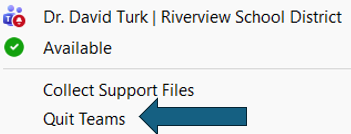
- Select “Quit”
🛑Keep it from running again at startup:
- Click the ellipsis (...) at the top, right, beside your user icon.
- Choose settings.
- On General, on the right side under System, uncheck the first 3 items.
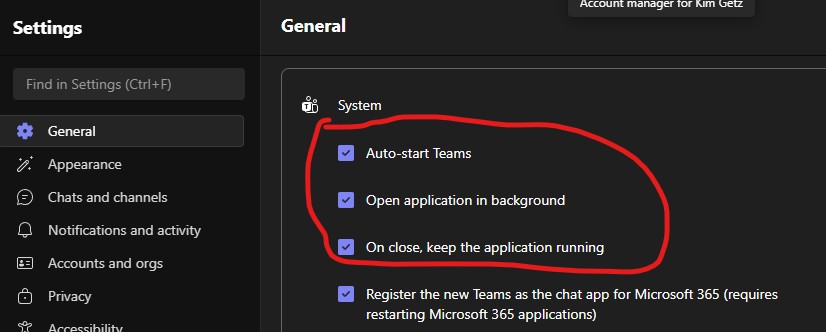
- Be sure to reboot!
2. Game Bar
- Some students have Windows Game Bar enabled, which can trigger this error
📅 Recommendation:
Plan to
practice testing on a day students are in the building so staff can assist with identifying and resolving this ahead of time.
🚫 Still Not Working?
If the issue continues after closing Teams and addressing Game Bar:
➡️ The device likely has a student profile issue
👉 Next Step:
- Send the computer to the IT Department for resolution
🛠️ Common Additional Issues
🌐 Test Not Loading / Slow / Freezing
- Confirm student is on RiverviewSD (not RSD-Guest)
- Restart device
- Try again
- If multiple students affected → send the computer to IT Department immediately
🎧 Audio or Microphone Not Working
- Plug in headset before launching test
- Check system volume
- Restart device if needed
- Move to another device if issue continues
🔒 DRC App Not Launching or Black Screen
- Restart device
- Ensure all apps are closed
- If still failing → send the computer to IT Department immediately
⏸️ Student Logged Out / Test Interrupted
- Have student log back in
- Test should resume where they left off
- If not → send the computer to IT Department immediately
🧰 Additional Tips
- Restart devices before testing sessions
- Ensure no background apps are running
- Conduct practice sessions ahead of testing windows