
As an owner of the TES All email group, you can add or remove members without contacting Technology.
1. Open the Distribution Groups portal
Open Microsoft Distribution Groups
Sign in using your Riverview email account.
2. Select Groups I own
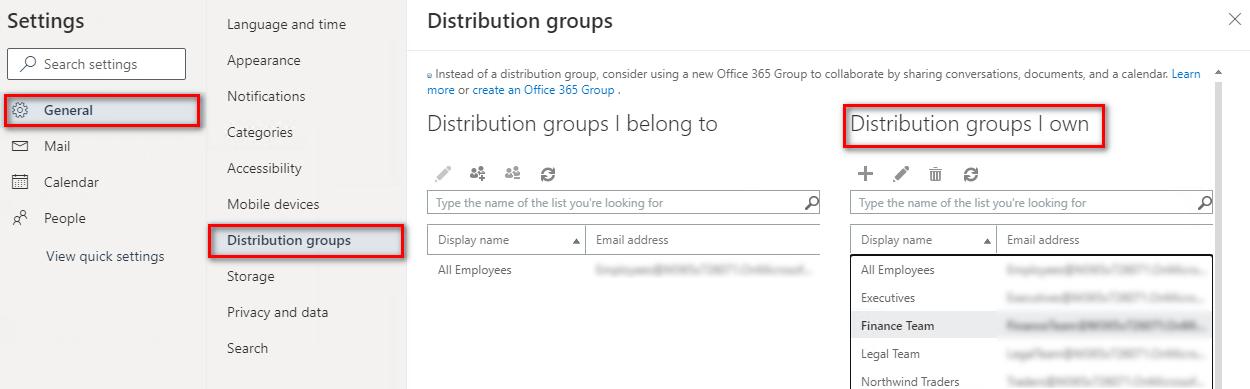
You will see two areas for groups. Choose Groups I own.
3. Select TES All
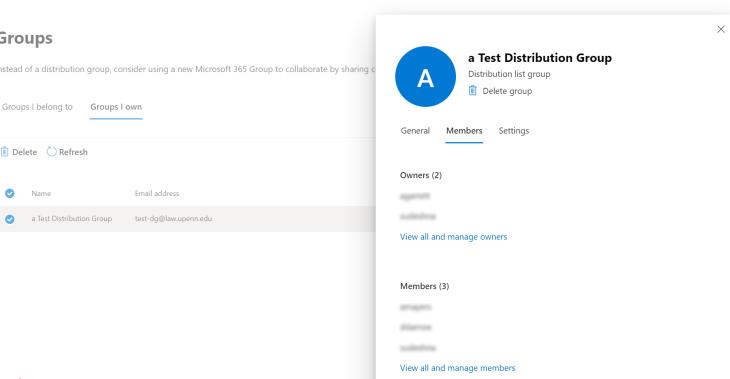
Find [your group name] in the list of groups you own and select it.
4. Manage the membership
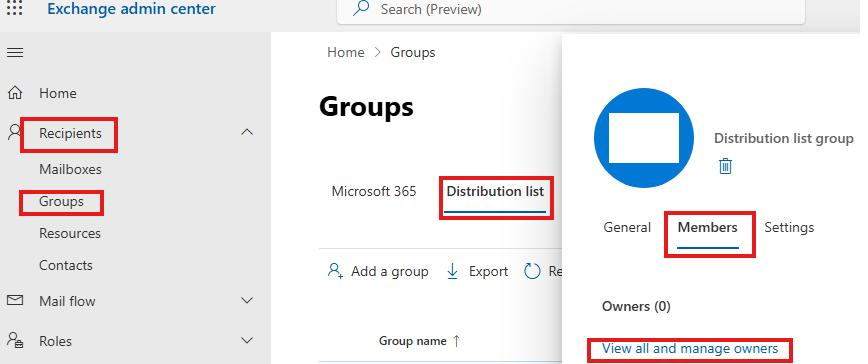
Open the group's membership settings.
To add someone: Choose Add, search for the person's name or email address, select the person, and add them to the group.
To remove someone: Select the existing member and choose Remove.
When finished, select Save. Microsoft identifies group owners as having permission to manage the group's membership. Microsoft Support
Adding someone outside Riverview
If you need to add someone with an email address that does not end in rsd.k12.pa.us and you cannot find them when searching, contact Technology.
Technology will create the external contact in Microsoft 365. Once the contact exists, it can be added to the distribution group. Exchange distribution lists support Mail Contacts as members. Microsoft Learn
Need help? Contact the Riverview Technology Department.