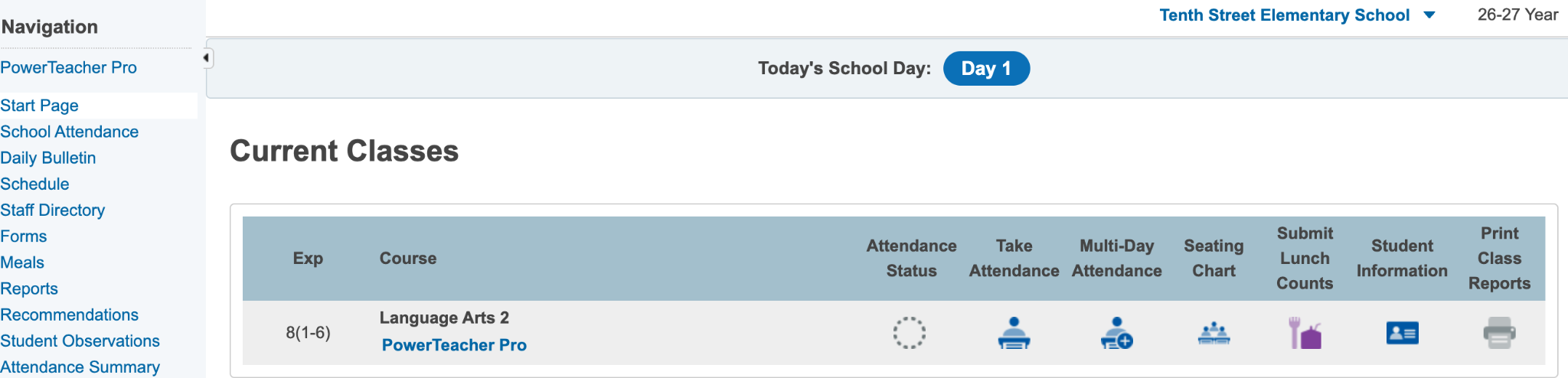
1. Open the PowerTeacher Start Page.
Log in to PowerTeacher and locate your class under Current Classes. Click the printer icon in the Print Class Reports column beside the appropriate class.
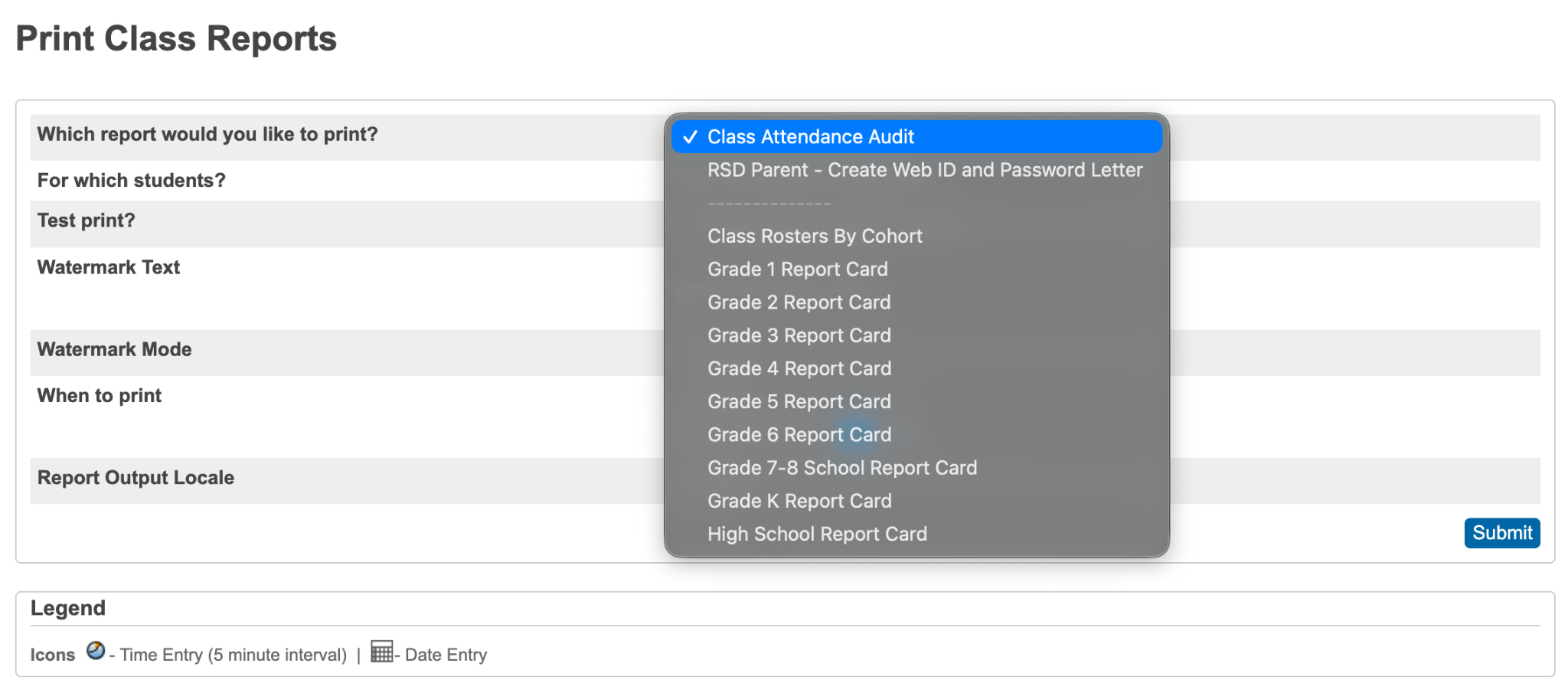
2. Select the report card.
On the Print Class Reports page, open the Which report would you like to print? dropdown.
Select the report card for your students’ grade level—for example, Grade 2 Report Card.
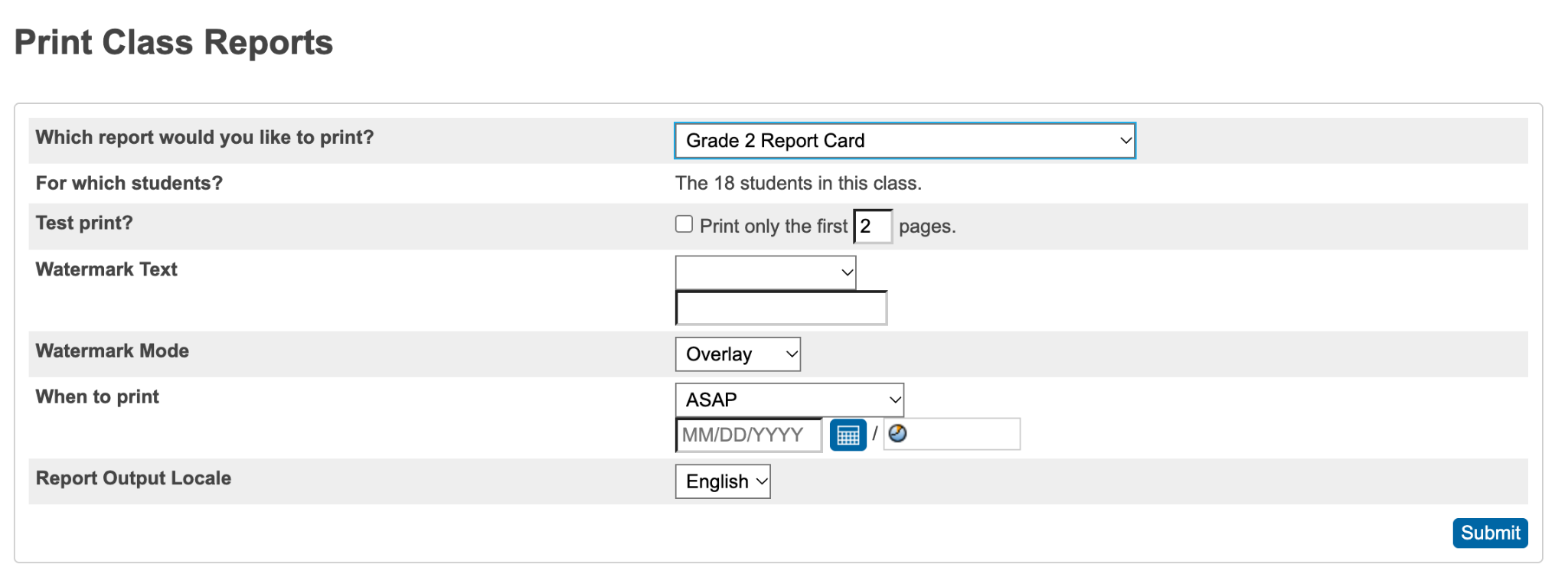
3. Review the printing options.
Confirm the following settings:
- Which report would you like to print? Verify the correct report card is selected.
- For which students? Confirm the displayed class size. Report cards will be generated for the students in this class.
- Test print? Leave unchecked to generate the complete set of report cards.
- Watermark Text: Leave blank.
- When to print: Select ASAP.
- Report Output Locale: Leave set to English.
Click Submit to generate the report cards.
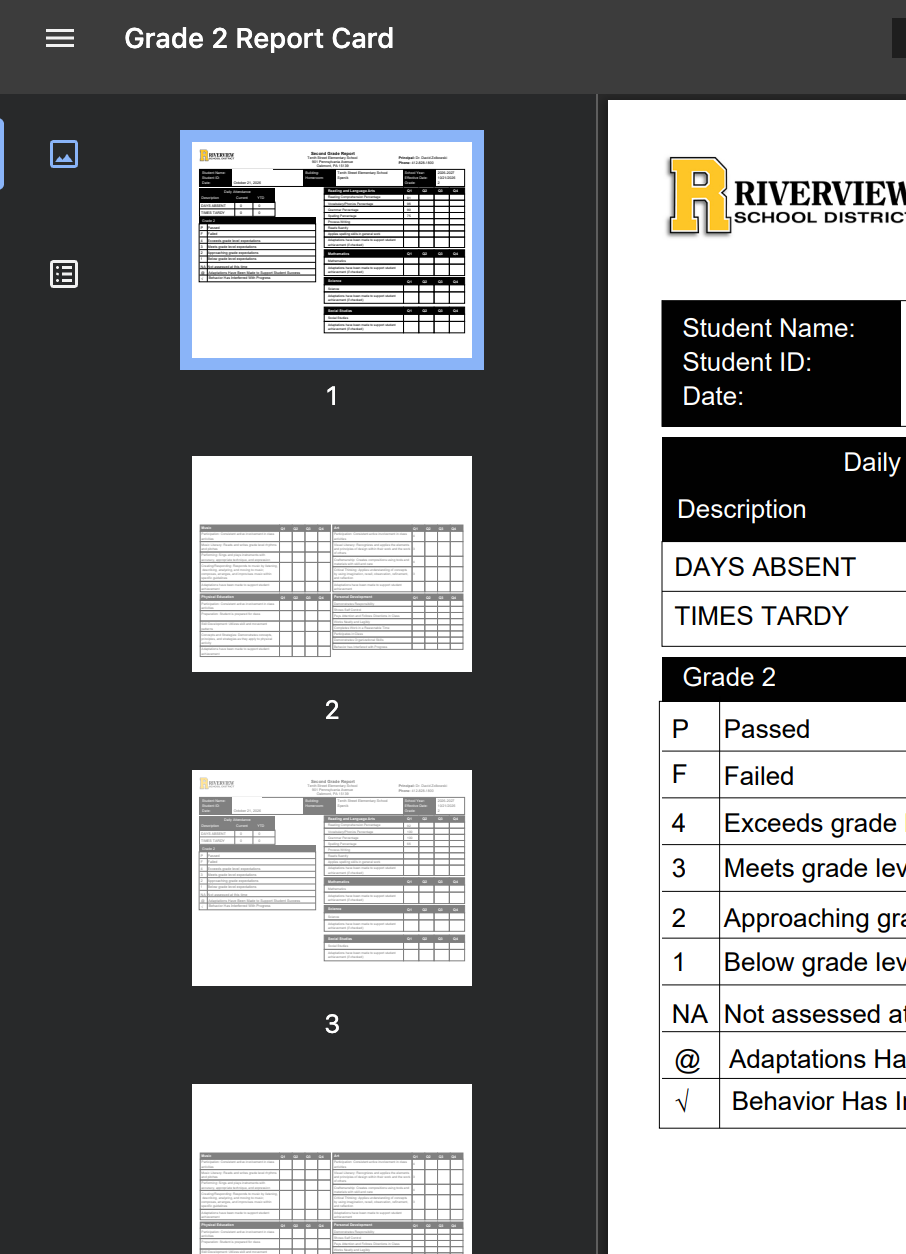
4. Open and print the report cards.
If the Report Queue appears, wait for the report to finish processing. Refresh the queue if needed, then click the completed report’s link to open it. (If several are running reports at the same time, it can take a few extra minutes.)


5. Open the completed report.
Once the report has finished running, click View beside Completed. If you are using Chrome, the report may open automatically in an additional tab.